


TV Cast & Mirroring: All TV
3.637.00 Reviews
App Specs
- Version
- 1.1
- Updated On
- License
- Free
- Downloads
- 1,000,000+
- Developer
- Jakka Apps
- Categories
- Video Players & Editors
- Platform
- Android
Screenshots
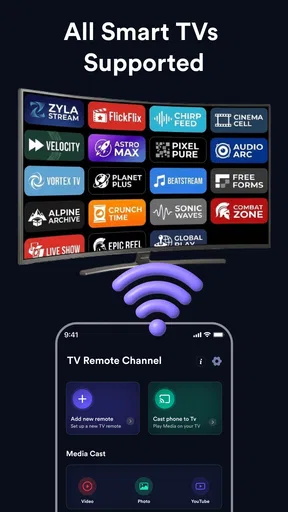
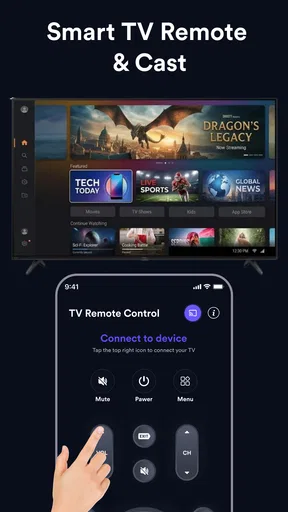
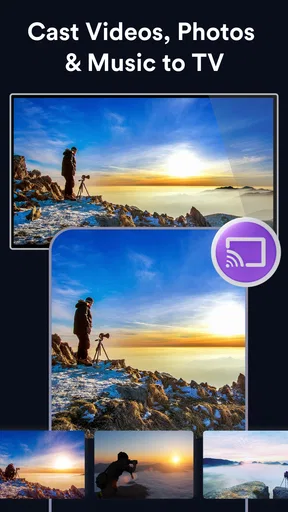
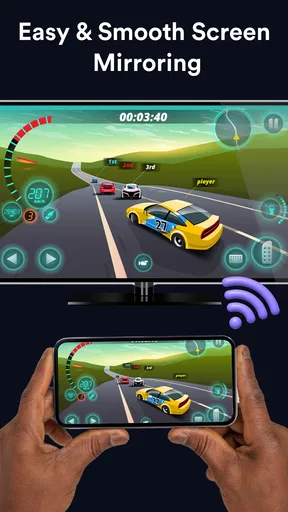
 Analysis by AppCompare
When I want to move a video or a batch of photos from my phone to a bigger screen, I’d rather avoid a fussy setup or a long editing process. TV Cast & Mirroring: All TV is built around that simple handoff: it brings video, photos, and a phone screen to a Smart TV, with remote control included. I see it as a practical viewing tool rather than a creative editor. It can help me share finished material with other people, but it is not where I would make or polish that material.
From a phone-sized idea to a shared screen
I treat a phone-to-TV session as a chance to give a small idea room to breathe, not as a shortcut to making the idea. Before I connect, I decide what I want people to notice and what kind of feedback would actually help; that makes the move to a shared screen feel purposeful. From there, the practical question is how to keep the viewing session comfortable and focused.
A useful first step when the audience is nearby
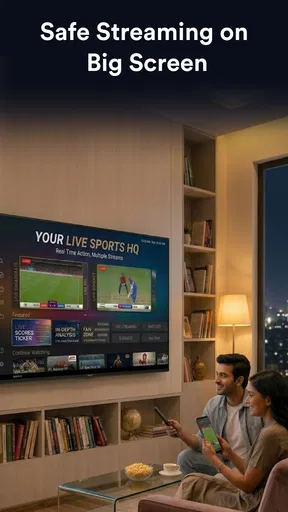
The app’s strongest creative use is getting something I already have onto a screen people can gather around. That might be a clip from a family event, a set of reference photos, or a visual draft I want someone else to look at. Instead of passing a phone from person to person, casting gives everyone a shared view and makes discussion easier.
That distinction matters. This is an app in the video-player and editing space, but the value described by its functions is in presentation and playback, not in assembling footage. I would choose it after recording and editing, when the question is how to show the result. If I need a timeline, transitions, captions, or color adjustments, I would use a dedicated editor first and treat this as a possible viewing step afterward.
The screen-mirroring option also suits work that is not a finished video. I can imagine using it to walk someone through images or show a phone-based design reference on a TV. A useful tip is to arrange the material on the phone before starting: put the intended photos or clips in a clear sequence and close unrelated items. This keeps the presentation focused and reduces the chance of hunting through a crowded library while others wait.
There is a trade-off, though. Mirroring a whole screen is broader than casting a selected piece of media, and it can expose whatever appears on the phone display. For a planned presentation, I would check notifications and open the right item before connecting. If I only want a quiet, uninterrupted film on the TV, a direct playback option in the video service may be more convenient than sharing the entire phone screen.
What the setup is meant to accomplish
Jakka Apps describes this release as a way to cast personal media and mirror a phone to a Smart TV, with remote control as part of the experience. That combination points to a straightforward workflow: choose something worth viewing, get it onto the television, then manage the session without making the phone the center of attention. For casual home use, that is a sensible focus.
Worth Reading Before You Choose

Baby Panda World Brings Quick Play to Modern Phones, but Its Game Library Feels Busy

ESPN’s Live Game View Makes Following Close Games Easier

QuizzLand Review: A Good Fit for Short Trivia Breaks, Not Every Player

Basketball Stars: Multiplayer Is Fast, but Can It Recover When Matches Go Wrong?

WEBTOON Turns Phone Updates Into a Better Reading Routine

Link to Windows Runs on Shared Habits, Not Social Feeds
I would not assume every television behaves identically just because the app is designed for Smart TVs. Casting depends on the phone and television being able to work together, so I would first check that the TV is available for connection and that both devices are on the appropriate home network. If the TV does not appear, restarting the app or checking the television’s casting settings is a more useful first move than repeatedly tapping through the media library.
Choosing what to share before you connect
A small but helpful workflow is to decide whether the goal is a single item or a live tour of the phone. For one finished clip or a few photos, selecting media is usually the more deliberate approach: it keeps attention on the content and avoids showing unrelated screens. Mirroring makes more sense when I need to move between different apps or explain a process as it happens.
This is especially relevant for creators showing a work-in-progress. I might display a sequence of reference images, pause to discuss a choice, then return to a draft on the phone. But I would not use the TV session as a substitute for a proper review setup. A television can make images easier to see together, while differences in display settings and room lighting can affect how colors look. For precise visual approval, the device or calibrated monitor used in production remains the better reference.
Making the viewing session work smoothly
A smooth session depends as much on preparation as on tapping a cast button. I like to have the right clip or images ready, settle the phone’s orientation, and silence notifications before mirroring, especially when other people are watching. Those small choices reduce distractions and make it easier to judge whether the TV is helping the conversation, which is the next part of the workflow.
Use the remote control to keep the phone in your hand
Remote control is a practical part of the promise because it can make a shared session feel less like a phone demonstration. When I am showing a clip or photos, I want to spend less time walking back to the device and more time talking with the people watching. Even without treating the app as an editing suite, controlling a viewing session is a useful part of delivering creative work.
For a review meeting, I would prepare a short set of items rather than improvise from the entire camera roll. That makes it easier to compare two visual directions, revisit a key frame, or move from a reference to the result. The non-obvious benefit is not a special editing feature; it is the way a TV changes group feedback. People can point to the same image, notice details together, and respond in sequence instead of reacting to a small screen passed around the room.
There are limits to that workflow. A remote can help with playback and viewing, but it does not turn the television into a full production workstation. If I need to trim a clip, revise audio, or export a new version, I would return to an editor. Keeping those jobs separate avoids expecting a casting app to solve problems it is not designed to handle.
Iteration means changing the material on the phone
When feedback leads to a revision, the useful loop is simple: note what needs changing, make the change in the appropriate app, then return to the TV for another look. I would not keep the television session open as though it were a shared editing canvas. This separation helps avoid confusion about which version is being discussed and makes it easier to confirm that the latest file is the one on display.
One practical habit is to give drafts recognizable names or keep them together in an album before presenting. The benefit is modest but real: when someone asks to compare an earlier cut with a newer one, I can find both without scrolling through unrelated personal media. For photos, arranging the candidates in a deliberate order makes the review feel more like a selection process and less like browsing.
Screen mirroring can be the better choice for iteration when I need to demonstrate an app or explain a sequence of actions rather than show a static export. It lets the audience follow what is happening on the phone. The downside is that phone notifications, orientation changes, and other interruptions may become visible on the larger display. I would switch on a quiet mode and settle the phone’s orientation before a presentation where those distractions would matter.
Connectivity and comfort are part of the handoff
Wireless viewing is convenient, but it relies on a stable connection between devices. If playback feels unreliable, I would first simplify the test: try one short clip, keep the phone near the TV, and check the home network before attempting a long presentation. That helps separate a connection problem from an issue with a particular file or a complicated session.
For a movie night, the best option may still be the streaming service’s own TV app, especially if the content is already available there. For personal videos, photos, or a phone screen that needs to be shared, a casting tool has a clearer role. That is the comparison I would keep in mind: direct TV apps are often the shortest route to their own catalogues, while a phone-to-TV utility is useful when the material begins on the phone.
Handing work off without mistaking casting for export
I find it useful to separate showing a result from delivering one. A TV session can make discussion and review easier, but the actual revision and file-sharing steps belong in the tools used to create and send the work. Keeping that distinction clear helps everyone leave with the right next action, rather than assuming that seeing something on the television means a finished copy has been handed over.
Showing a finished result is not the same as delivering a file
In a creator workflow, “handoff” can mean sending an actual file to a client or collaborator. This app’s described role is different: it helps present content on a television. I would use it to review or share a result in the room, not assume it exports, compresses, edits, or transfers a final deliverable. If someone needs a copy, I would use the normal file-sharing or export route from the app that created it.
That makes the app useful at a particular point in the process. After a video or visual set is ready, I can show it to a family member, teammate, or client on a larger display and gather immediate reactions. Then I can make changes in the editing tool and share the revised file through the channel the recipient actually needs. Clear expectations prevent a viewing session from being mistaken for a delivery system.
For informal sharing, the larger screen can make a meaningful difference. A group deciding which photos to keep can compare them without crowding around one phone, while someone checking a short clip can notice framing or pacing more easily from across the room. I would still be cautious about judging fine detail on a television that is not set up for accurate image review, but it is excellent for broad reactions and shared enjoyment.
Who should consider it, and who should skip it
I would recommend giving it a try if you often keep the material you want to show on your phone and have a compatible Smart TV nearby. It is a reasonable fit for households sharing personal photos and videos, and for creators who want a convenient room-scale preview. The app is free and rated for Everyone, which makes it approachable for general household use, though adults should still guide younger users when they are mirroring a personal screen.
I would skip it if your main need is editing, organizing a professional media library, or sending polished files to other people. It also may not be the right choice if you already watch everything through a television’s built-in apps and rarely need to show phone content. In those cases, a video editor, a cloud photo service, or the TV’s own playback apps will do a more direct job.
Its current version is 1.1, and the app has an average rating of 3.6 from around 2.7 thousand ratings, alongside 37 written reviews. It has over a million installs, so plenty of people have tried it, but I would read that reach as evidence of broad interest rather than a guarantee that every phone-and-TV combination will be effortless. For a wireless casting utility, compatibility and the home setup matter as much as the app itself.
My verdict for everyday creators
TV Cast & Mirroring: All TV makes the most sense as a bridge between a phone and a shared television screen. I like the focused idea: bring personal media or the live phone display into the room, then use remote control to make viewing less awkward. Its strengths are practical rather than transformational, and I would judge it by how reliably it fits the devices already in your home.
For me, the best use is a casual but purposeful review: prepare a few images or clips, cast them for a group, collect feedback, and make any real edits elsewhere. That workflow gives the app a clear place without asking it to be an editor or a file-delivery service. If that is the gap you need to fill, the free app from Jakka Apps is worth considering; if you need creative production tools, choose an editor built for that job instead.
Pros
- Supports screen mirroring to many popular smart TV brands.
- Useful for sharing photos and videos on a larger screen.
- Simple setup makes it accessible to first-time users.
- Can help present content from a phone without extra cables.
- Combines casting and mirroring tools in one app.
Cons
- TV and phone usually need to be on the same Wi-Fi network.
- Some features may require a paid subscription or in-app purchase.
- Streaming compatibility can vary by TV model and app.
- Mirroring may introduce lag
- especially with games or fast video.
- Casting quality depends on your Wi-Fi connection and device performance.
FAQs for TV Cast & Mirroring: All TV
What does TV Cast & Mirroring: All TV do?
TV Cast & Mirroring: All TV is designed to help you send supported media from your mobile device to a television and, where compatible, mirror your screen. It can be useful for viewing photos, videos, or other content on a larger display. The exact casting and mirroring options depend on your phone, television, network, and the features available in the version you install.
Which televisions and devices are compatible with the app?
Compatibility can vary, so check the app’s store listing and your TV’s specifications before downloading. Casting generally requires a television or streaming device that supports a compatible receiver or screen-sharing standard; some setups may also work through a streaming stick. Your phone and TV typically need to be connected to the same Wi-Fi network. A TV’s brand name alone does not guarantee that every feature will work.
How do I connect my phone to my TV using TV Cast & Mirroring: All TV?
Start by connecting your phone and television or streaming device to the same Wi-Fi network, then open the app and look for available devices. Select your TV or receiver and follow any prompts shown on both screens. Some televisions require screen mirroring to be enabled in their settings first. If the TV does not appear, check the network connection, restart the devices, and confirm that they support the same connection method.
Is an internet connection required, and can I cast any content?
A Wi-Fi connection is usually needed for discovering and communicating with a TV, although requirements can differ by device and feature. The app may support certain local photos or videos as well as screen mirroring, but it does not necessarily make every website, app, or streaming service available on your television. Copyright controls, app restrictions, file formats, and the TV’s capabilities can prevent some content from being cast or mirrored.
Is TV Cast & Mirroring: All TV free, and what should I check before downloading?
Availability, pricing, advertisements, subscriptions, and in-app purchases can differ by platform and may change over time, so review the current Google Play or App Store listing before installing. Also check the app’s permissions, compatibility notes, recent user reviews, and privacy information. For smoother playback, use a reliable Wi-Fi connection and keep your phone and TV software up to date; performance can still vary across devices.


